CarX Street Lag Fix: Best Graphics Settings for 4GB RAM Devices
If you’re on a budget phone with 4GB of RAM (like many players in India), this lag-fix guide is for you. I wrote it for the stutter, overheating, and sudden crashes I kept seeing—especially after the heavy v1.18.0 May 2026 update.
Sunset City is a huge open map, and it can stress your phone. With the right settings, you can still enjoy a smooth experience. In this guide, I show you my best “No-Lag” settings to reduce stutter and keep your phone cool.
Quick answer
If your carx street apk lags on a 4GB RAM phone, I help you make CarX Street smoother with safe settings that reduce stutter and overheating.
- Version: CarX Street v1.18.0 (2026 (latest May patch)).
- Platform: Primarily Android; hub & downloads: homepage, device checks: compatibility list.
- Regions: English guides for a global audience; performance tips often help India / SEA / LATAM on 4GB RAM & Snapdragon phones.
Last updated:
Why Does CarX Street Lag on 4GB RAM Devices?
Before we fix the lag, it helps to know why it happens. CarX Street loads the full big city map and detailed cars, and on a 4GB RAM phone that can overload things and cause stutter and freezing.
If your game is constantly freezing, you might want to check our CarX Street Device Compatibility List to see if your processor is officially supported. For PC players experiencing similar issues, check our CarX Street for PC optimization guide.
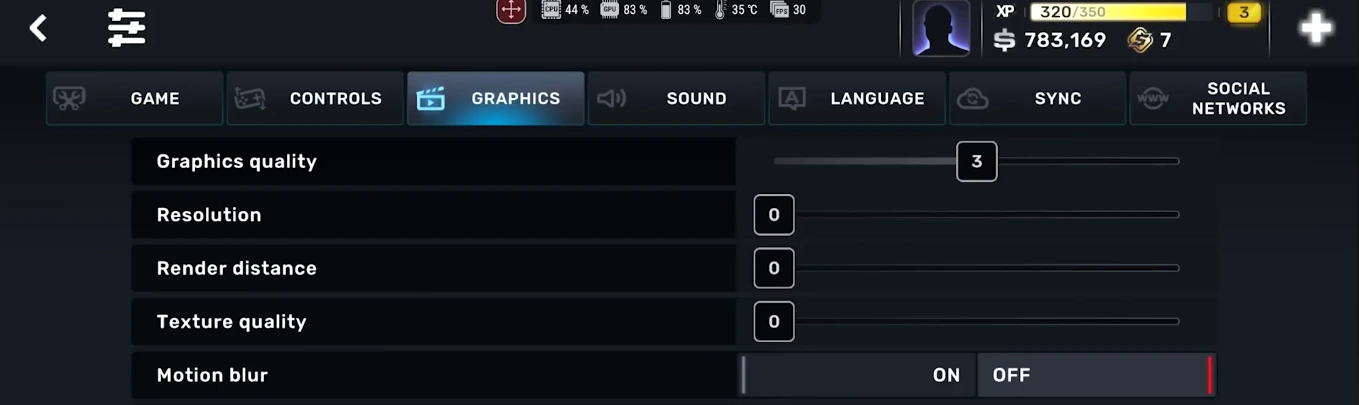
Best Graphics Settings for No-Lag (v1.18.0)
To get the best performance, open your game settings and apply these changes immediately. These are specifically tested for budget Snapdragon and MediaTek processors.
Basic Graphics Tab
-
Render Distance: Set to
1 or 2. This is the most important setting. High render distance forces your phone to load distant buildings, which kills FPS. -
Texture Quality: Set to
Low. While "Medium" looks better, "Low" saves a massive amount of VRAM. -
Shadow Quality: Set to
Off. Shadows are a luxury that 4GB RAM phones cannot afford. -
Motion Blur: Set to
Off. While it looks cinematic, it causes significant stuttering on low-end GPUs.
Advanced Graphics Tab
-
Smoke Intensity: Set to
Low. Drifting creates a lot of smoke, and too much smoke during a drift will drop your FPS to zero. -
Post-Processing:
Disabled. This removes extra lighting effects but stabilizes your frame rate.
Pro-Level Optimization Tricks (The Developer's Secret)
As a WordPress developer, I always look for "backend" fixes. For CarX Street, your phone's software environment matters as much as the game settings.
-
Use a Game Booster: Most Indian phones (Xiaomi, Realme, Samsung) have a built-in "Game Mode." Ensure it is set to "Pro Gamer" or "Performance" mode to prioritize CPU for the game.
-
Clear Background Apps: Before launching your v1.18.0 installer version, clear all apps from your multitasking tray.
-
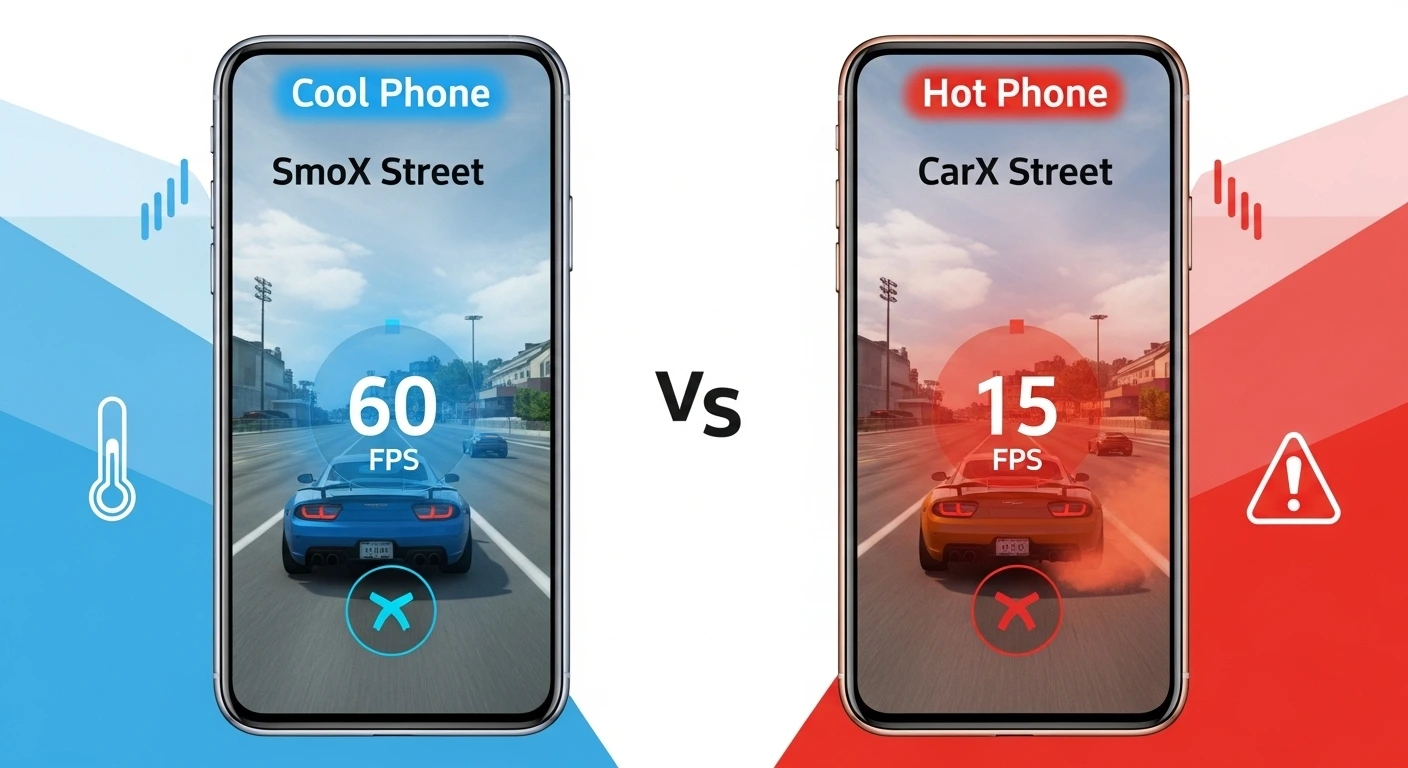
Cooling is Key: Heat is the enemy of FPS. If your phone gets hot, the CPU will slow down (thermal throttling). Play under a fan or use a mobile cooling fan for long sessions.
Fixing the May 2026 update Lag
The latest winter update added snow and frozen water, which looks amazing but is very heavy on the GPU. If the newer seasonal effects are making your game unplayable, you can try rolling back to a lighter build from our CarX Street Old Versions Archive.
However, if you want the new cars like the S70, stick to the current version and use our Performance Calculator Tool to find a balanced config file.
Common Lag-Related Errors
Stuck on Loading Screen
This usually happens when the RAM is full. If you're stuck, read our guide on Fixing CarX Street Black Screen & Loading Errors.
Download Failed Error
Sometimes lag causes the OBB data to not load properly. Check our OBB Manual Installation Guide to ensure your files are placed correctly.
Comparison: CarX Street vs. Lighter Alternatives
If your device simply cannot run CarX Street even on the lowest settings, don't worry. There are other games that offer great drifting with much lower requirements. Check out our list of the Top 5 Games Like CarX Street Under 1GB for a smoother experience on older hardware.
Frequently Asked Questions (FAQs)
Conclusion
You don't need a flagship phone to enjoy Sunset City. By lowering the render distance and turning off shadows, you can turn a laggy mess into a playable racing experience. Apply these settings today and get back to winning those club races! For more performance tips, check out our Snapdragon 600/700 series optimization guide and our device compatibility list.